
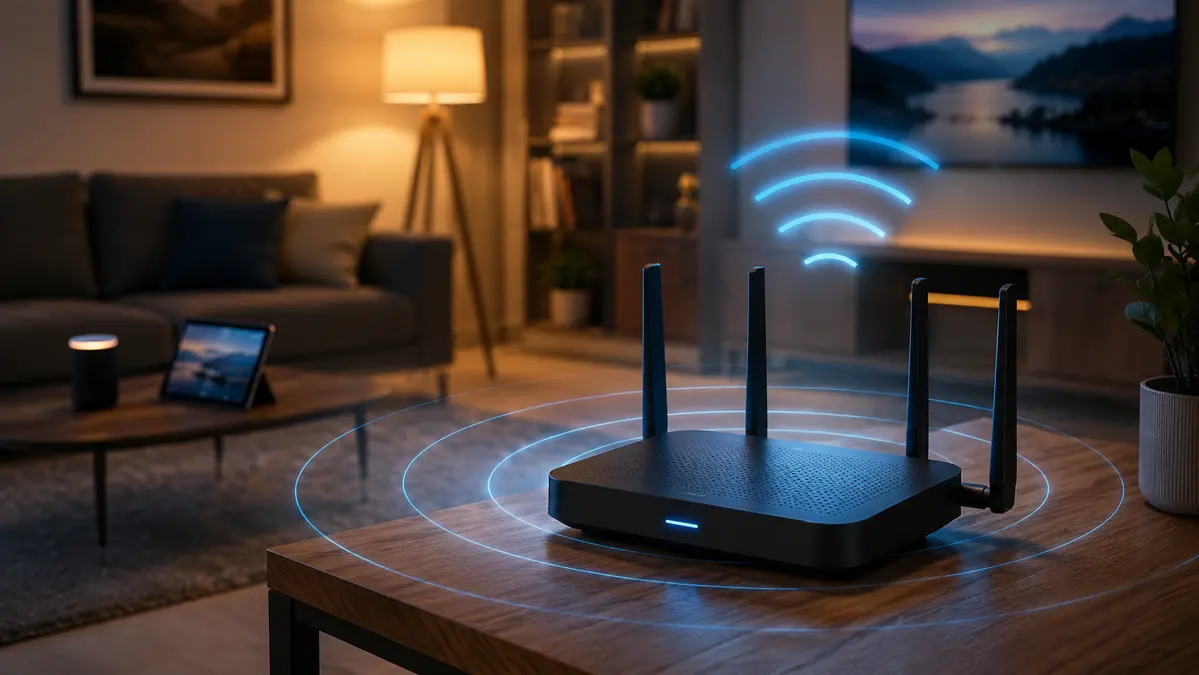
Having fiber internet at home doesn't guarantee anything anymore. More people than ever are paying for 300, 500 or even 1,000 Mbps plans, and when it comes down to actual use on a phone or laptop, real-world performance falls well short of what's advertised. The good news: in most cases the bottleneck isn't on your provider's end at all — it's something you can fix yourself, for free, in under ten minutes.
Step one: rule out your provider
Before touching any settings, run this test. Connect your computer directly to the router with an Ethernet cable and open a speed test site like speedtest.net or fast.com. If the wired speed comes close to what you're paying for — say, 500 out of a 600 Mbps plan — your connection is fine and the problem is entirely your home WiFi setup. If the wired speed is also low, the issue is upstream and it's worth calling your provider.
Run this test with every other app closed and other devices disconnected from the network — a speed test while half the house is streaming or downloading something won't give you a reliable number.
1. Weak signal from distance or obstacles
This is the single most common cause. Being far from the router, or having thick walls, metal panels or mirrors between your device and the router, degrades signal quality even when the router itself is working perfectly. RSSI values (signal strength measured in dBm) below -70 dBm already indicate a weak signal that will cause slowdowns and dropouts.
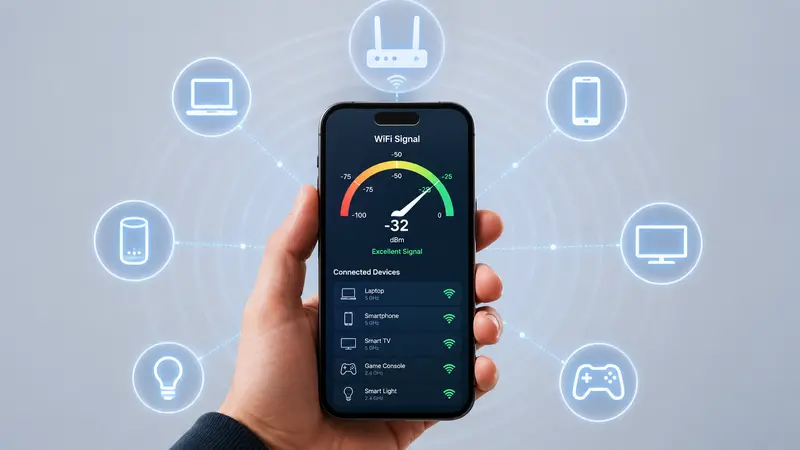
Fix: get physically closer to the router whenever possible. Adjust antenna positioning — if your router has two external antennas, having one vertical and one horizontal often improves coverage. For fixed devices like a smart TV or desktop PC, run an Ethernet cable if you can; it's always more stable than WiFi.
2. You're on the wrong band
Most modern routers broadcast two networks simultaneously: one at 2.4 GHz and one at 5 GHz. The 2.4 GHz band has longer range but lower speed. The 5 GHz band is significantly faster but loses range much faster through distance and obstacles.
Fix: when you're near the router, always connect to the network labeled 5G or 5 GHz. Save the 2.4 GHz band for when you're farther away or in another room with walls in between.
3. Your WiFi channel is congested
Every WiFi network transmits on a specific channel within its band. In apartment buildings or dense residential areas, it's common for multiple neighboring routers to end up on the same channel without anyone noticing — creating mutual interference, similar to multiple people talking over each other on the same radio frequency.
Fix: use an app like WiFi Analyzer on Android to see which channels are least congested in your area, then manually set that channel in your router's admin panel. Most routers default to automatic channel selection, but that automatic mode doesn't always pick the best option.
4. Interference from other electronics
Microwave ovens operate at 2.45 GHz — nearly the same frequency as the 2.4 GHz WiFi band. While a microwave is running, it can directly interfere with your signal. Older cordless phones and some baby monitors cause the same type of interference.
Fix: switch to the 5 GHz band, which doesn't share frequency with these devices, or move the router away from the kitchen and any appliance that broadcasts on that frequency.
5. Too many devices connected at once
Smart homes added dozens of connected devices that simply didn't exist a few years ago: TVs, smart fridges, security cameras, speakers, lights. Each one uses a slice of available bandwidth, however small, and the combined total can saturate the network.
Fix: log into your router's admin panel and check the full list of connected devices — you'll likely find several you forgot were even there. Disconnect anything you're not using. If you have a lot of IoT devices, put them on a separate guest network instead of the one you use for work or gaming.
6. QoS settings misconfigured or missing entirely
QoS (Quality of Service) is the feature that lets a router prioritize certain types of traffic over others. Without QoS configured, a large background download can eat up all available bandwidth right when you're on an important video call.
Fix: open your router's advanced settings, find the QoS or "Traffic Management" section, and prioritize video calls and gaming over downloads and automatic updates. If QoS settings end up causing more problems than they solve, it's also fine to disable it entirely so bandwidth gets split evenly across all devices.
7. Your router is outdated or missing a firmware update
A router that's several years old and hasn't received updates can carry software bugs that directly affect stability and speed. Old WiFi extenders running the 802.11n standard are another common culprit — they significantly cut available bandwidth even when your main router is modern.
Fix: check your router's admin panel for a pending firmware update. If your home is larger than 80-90 square meters with thick interior walls, a mesh WiFi system — which distributes two or three access points working as a team — is usually the upgrade with the biggest real-world impact, far more than a traditional WiFi extender, which cuts speed roughly in half because it uses the same channel to receive and rebroadcast the signal.
A free bonus fix: change your DNS
This isn't directly related to WiFi signal strength, but changing your router's DNS can make web pages load noticeably faster. Some providers' default DNS servers are slow at resolving addresses. Setting Cloudflare's DNS (1.1.1.1) or Google's (8.8.8.8) directly in the router is a one-minute change that improves browsing speed across every device in the house simultaneously, at zero cost.
The bottom line
Most slow WiFi problems don't require calling anyone or spending money — moving the router, picking the right band, and checking how many devices are actually connected solves it in the vast majority of cases. If you've tried all of this and the improvement is still minimal, that's when a new router or a mesh system is actually worth the investment.






Comments
💬 Log in to comment💬 Join the conversation and log in to comment.